Query Bot
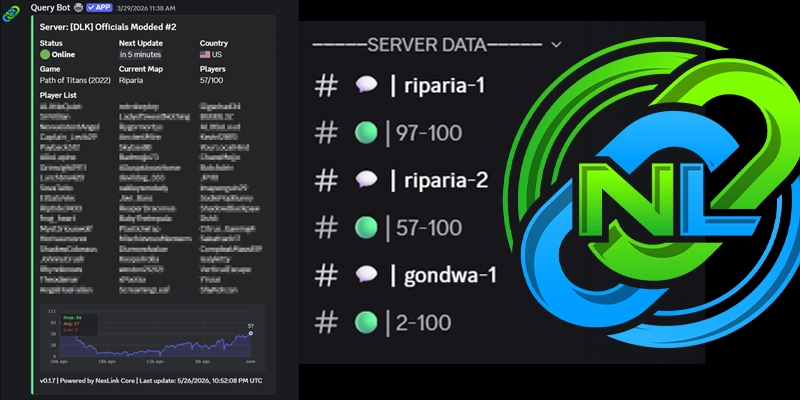
Query Bot keeps your Path of Titans community informed without anyone needing to alt-tab into the game.
Features
- Live server status embed (online/offline, country, map, player list)
- Auto-updating player count in your channel name
- 24h player-count chart with peak and average tracked inside the embed
- Web dashboard with player count graphs, peak hours, and retention stats
- Top players leaderboard with total playtime
- Updates every 5 minutes, 24/7
Query Bot can also automatically rename a selected channel to reflect your server’s activity level, allowing members to instantly see how populated the server is directly from the Discord sidebar.
Example:
🟢│10-40 Players
For deeper analytics, every server receives its own page on the Query Bot Dashboard featuring:
- 24h and 48h player-count graphs
- Peak-hour heatmaps
- Top players by playtime
- Player retention statistics
- Returning vs. new player tracking
- Churn analytics
- Live “online now” sessions with durations
How to Use Query Bot
Step 1 — Confirm Eligibility
Query Bot is available to:
- Potbot Premium customers
- NexLink Core Path of Titans hosting customers
Once verified, you can access the Dashboard.
Step 2 — Invite the Bot
On the dashboard, click Invite Bot in the top-right corner next to Logout.
Complete the Discord authorization process and select the server you want Query Bot to join.
Step 3 — Activate the Bot
After the bot joins your Discord server, use:
/activateYou must run this command before using the bot or allowing other administrators to manage it.
Step 4 — Configure Channel Permissions
Query Bot requires the following permissions in the channel where it will post updates:
View Channel— Allows the bot to see the channelSend Messages— Allows the bot to post status updatesManage Channels— Allows automatic channel renamingEmbed Links— Allows rich status embedsAttach Files— Allows graph uploadsRead Message History— Allows updating existing status messages
Use /fix_permissions inside the channel to automatically check for missing permissions.
Step 5 — Add Your Server
Run:
/add_serverAfter submitting the command, a popup modal will appear asking for:
- Server IP
- Query Port
For NexLink Core customers, your Query Port can be found in the server’s Startup tab.
Finished!
Once configured, Query Bot will automatically begin posting and refreshing your server status every 5 minutes.
For long-term analytics and player insights, open the Web Dashboard, select your server from the dropdown menu, and view:
- Player history
- Peak activity hours
- Top players
- Retention analytics
- Live player sessions
Everything updates automatically in real time.
Get Started
Ready to Power Your Community?
Join thousands of gaming communities who trust NexLink Core for their server hosting needs. Deploy in minutes, not hours.